> Rendered: https://z29k.github.io/notabene/guide/editor · Docs index: https://z29k.github.io/notabene/llms.txt
# Editing in the page
The review loop gives an agent a way to write. This gives *you* one, without leaving the
page you are reading.
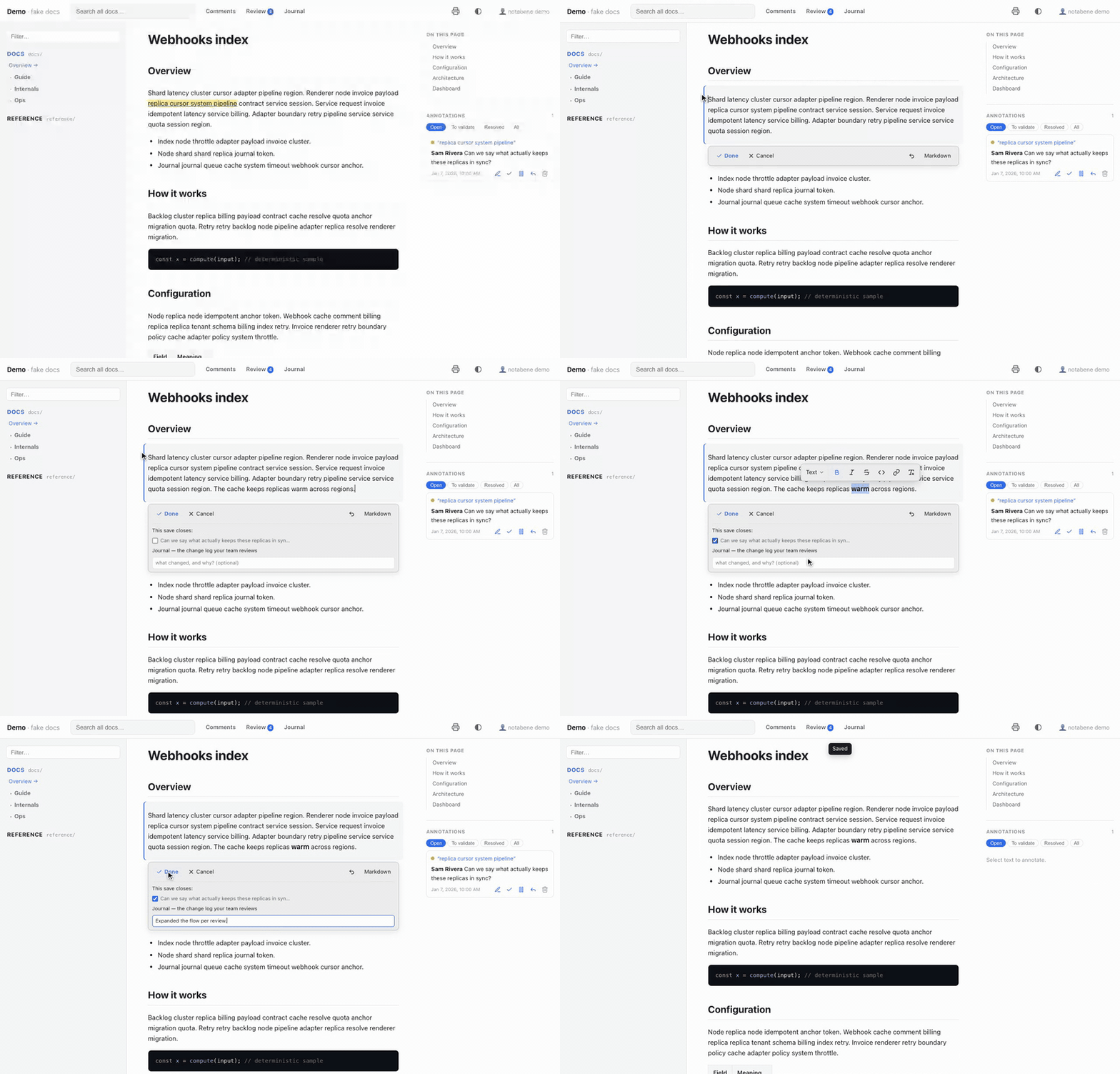
Hover a paragraph and three handles appear in the margin — **✎** edits the block, **+**
adds one below, **⋮⋮** opens the block menu. Click the pencil and you are editing that
block, in place: it keeps the page's own typography and does not move, it just takes on a
tinted background so you can see which one is live. Only that block's source is
rewritten — the rest of the file is not touched, so the diff your teammates review is the
one line you actually changed.
It is a **dev-only** tool, exactly like commenting: the write API exists under
`notabene dev` and nowhere else. A built or published site has no editor, no endpoint,
and no trace of one.
## The gestures
Two intentions, two gestures — which is why there is no mode switch:
| You do | You get |
| --- | --- |
| **✎** in the margin | you are editing that block |
| **⋮⋮** in the margin | the block menu — add below, duplicate, copy link, comment, delete |
| **Select** text, anywhere | the comment popover, exactly as before |
| Select text *while editing* | the formatting toolbar, at the selection — **Turn into** first |
| **+** in the margin | a new block under this one |
| `/` while editing | the block palette — it **inserts below**; type to filter |
| **Done**, or `⌘↵` | save — the change is written |
| Click elsewhere | an untouched block closes; a modified one stays open and asks |
| **Cancel**, or **Escape** | discard — the block goes back as it was |
| `⌘Z` | undo your typing, as anywhere else |
| `⌘⇧M` | swap to raw Markdown for that block, and back |
Reading and editing never fight over the same gesture: selecting text always means
"comment on this", and editing always starts from the pencil. **Writing is explicit**:
only **Done** (or `⌘↵`) touches the repo. Clicking elsewhere closes an untouched block —
moving around the page never writes — but a block with changes stays open and asks, so a
stray click can neither write your edit nor lose it.
Discarding is the one way out that throws work away, so when the block has unsaved changes
it asks once: press again — or click **Cancel** — to confirm, right where you are looking.
On an untouched block it just closes. Nothing is sent to the server either way, and the
draft is dropped, so re-opening the block gives you the file's own text back.
While a block is live, one compact **card sits directly under it**: Done, Cancel, undo and
the Markdown toggle on its first row, and — once you have changed something — everything
the save can carry (see *Closing the loop*). There is no other chrome: no mode, no rail,
no panel somewhere else on the screen.
**Tables carry their controls on the grid itself**, not on a bar that follows the caret.
Hovering a cell raises a handle on its row and its column; the column handle opens
alignment (`:--`, `:-:`, `--:` — a column property in Markdown) and delete, the row handle
opens delete, and the table's edges grow **+** buttons for a new row or column. Rows and
columns drag to reorder — all of it inside the one block the editor owns.
Two toolbar actions make a whole row or a whole column read as a **header** — they appear
when your selection is inside a table. They exist because Markdown carries no styling: the
only thing they can write is bold, so they bold every cell of that row or column, and the
renderer gives a fully-bold row or column the header's own surface. Press again to undo
it. The header row itself is left out — it is already a header.
That threshold is deliberate. A *lone* bold cell stays plain emphasis: `| **✎** in the
margin | … |` is not a label, and tinting it would be guessing. Only a complete run is
treated as a decision, which is exactly what the buttons produce. The file stays portable
either way — on GitHub, or in any editor, those cells simply read as bold.
There is no header or footer option beyond that, and that is the format rather than an omission: a GFM
table has **exactly one header row**, always, and Markdown has no concept of a footer row or
of a header column. Offering them would mean emitting raw HTML tables — which stop being
Markdown, stop round-tripping through the containment check, and stop rendering anywhere
else your `.md` files are read.
The toolbar itself appears **only at a text selection** — a bare caret gets nothing. A bar
that follows the caret sits on the very text being edited, so structure lives elsewhere:
tables on their grid, lists on the keyboard (`Tab` / `⇧Tab` to indent and outdent) and on
the toolbar when text is selected inside one. `Tab` moves between table cells, and `Tab`
in the last cell adds a row rather than dropping you out of the block.
An edited table comes back in the file's own convention, down to the delimiter row: a
compact `| --- |` file stays compact, an aligned one stays aligned. That matters more than
it sounds — a table that could not round-trip would be rewritten in full by someone who
only opened it and pressed Done.
## Blocks
An empty block tells you so itself — it carries a *Type '/' for commands* placeholder,
the way Notion's does. A gesture you have to be told about in documentation is a gesture
most people never find.
`/` opens the palette Notion trained everyone to reach for, with Notion's verb: it
**inserts a new block below** the one you are in — **Text, Heading 1–4, Bulleted list,
Numbered list, To-do list, Quote, Code, Table, Divider, Image**, each with its Markdown
shortcut shown beside it. Only an *empty* block is typed in place instead, which is the
one case where inserting and transforming mean the same thing. Type to filter, `↑`/`↓` to
move, `↵` to apply; the `/query` you typed is swallowed.
Changing what an existing block *is* lives on the toolbar instead: select text and the bar
leads with **Turn into** — the current block type, with a menu of everything GFM can turn
it into. Two verbs, two surfaces, never confused.
Managing the block is the **⋮⋮ menu**, and it needs no editing session at all:
**duplicate** and **delete** are one-shot range writes (a duplicate writes the block
twice, a delete writes nothing and takes one blank-line separator with it — neighbours
come back byte-identical either way, and delete asks once before acting); **copy link to
block** puts the nearest heading anchor on your clipboard; **comment** hands the block
straight to the selection-comment flow.
What Notion offers and Markdown cannot carry: **colour**, **block alignment** (there is no
text-align in Markdown; only *table columns* have alignment, set from the column handle),
**move up/down** (it rewrites two blocks at once, which the containment check refuses by
design), callouts, toggles and columns.
The formatting toolbar covers what GFM has: **bold**, *italic*, `code`, ~~strikethrough~~,
links — the link button opens a small input for the URL, and hovering an existing link
offers edit, copy and remove — and a **clear formatting** button that strips every mark
from the selection. Buttons light up when the selection already carries their mark.
Underline, colour and highlight have no Markdown syntax, so they are not offered rather
than silently written as HTML.
The Markdown shortcuts work too, and always did: `- `, `1. `, `# `, `> `, ` ``` `,
``, and `|3x2|` for a 3×2 table. The palette exists because a shortcut you have
to already know is not an interface.
**+** in the margin, next to the ✎, starts a **new block under this one**. The block you
clicked beside stays *rendered* — it is not what you are editing — and an empty surface
opens beneath it, ready for `/`. Leave it empty and nothing at all is written, so clicking +
and changing your mind costs nothing.
Under the hood the save rewrites that one block's range with two blocks, which is why the
neighbours still come back byte-identical. (Editing the original in order to type below it
was the first attempt, and it read as adding a line break to it.)
**Images**: paste one, or pick `Image…` from the palette. Either way the file is written
into the repo next to the page with a content-hashed name and linked for you, so it lands
in the same commit as the prose that references it.
What we deliberately did **not** take from Notion is drag-to-reorder. Moving a block past
its neighbour rewrites two blocks at once, which is precisely what the containment check
refuses — and that check is what keeps your diffs down to the line you changed.
Prose blocks open as **rich text**: what you type looks like what the page will render, and
selecting inside shows the formatting toolbar. Code fences (and anything else the renderer
cannot represent as prose) open as **plain Markdown** instead — a WYSIWYG view of a code
block would be a worse code editor than a text area, and the page re-renders the real thing
the moment you save. `⌘⇧M` swaps either way.
If a reload interrupts you — HMR fires on every save, and whenever the agent writes — the
text you had typed is kept and restored when you reopen that block.
**On a phone** the same two steps survive, with the gesture a phone can spare: a **tap**
arms the block — it outlines it and raises two buttons under the topbar, *Edit this
block* and **⋮** for the block menu (add a block below, duplicate, copy link, comment,
delete — as a bottom sheet). A tap alone never edits anything, because on a phone the tap is how you read:
you tap while scrolling, aiming at a link, or on your way to a long-press. Long-press
still selects, and still offers to comment.
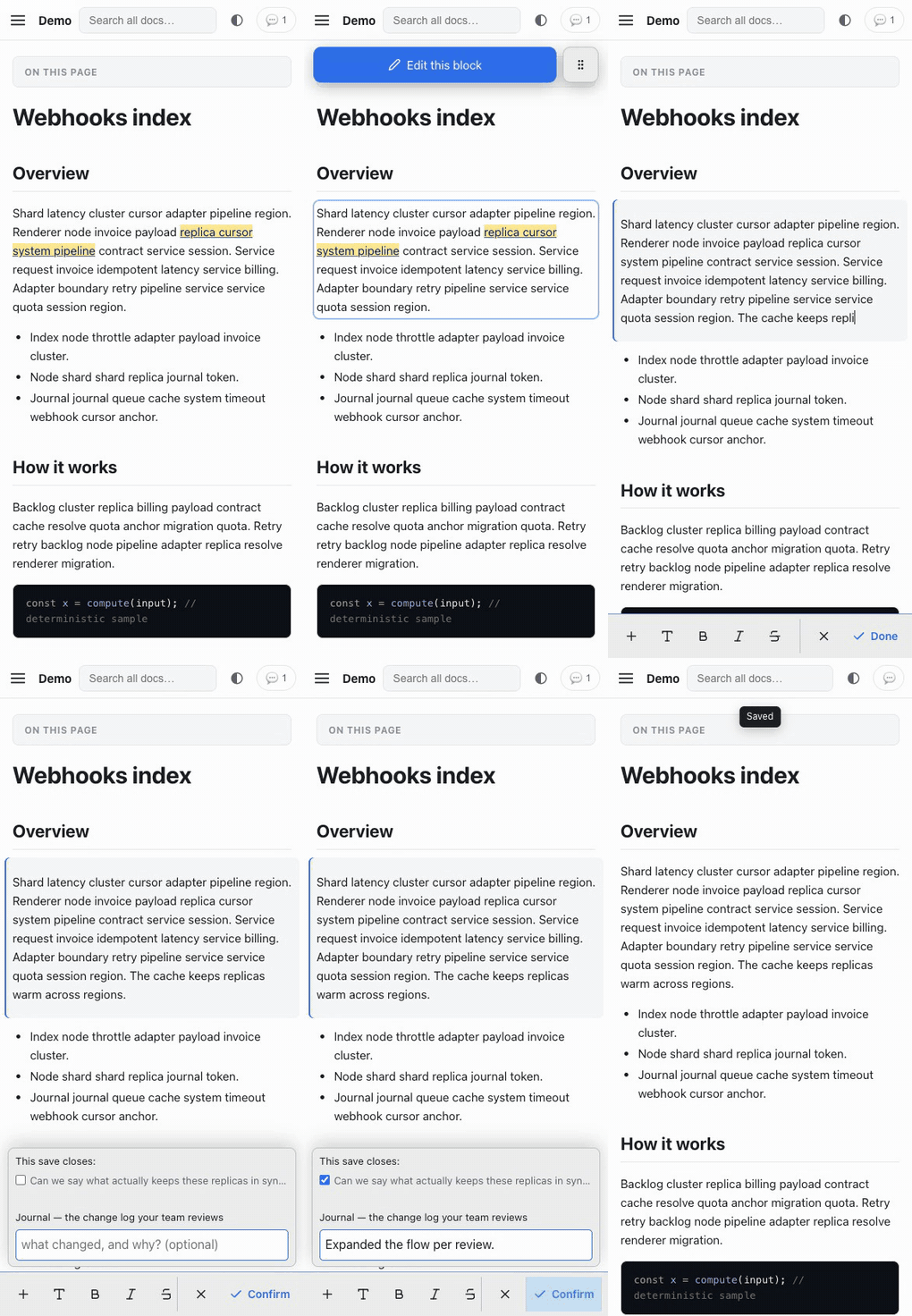
While you edit, the writing tools live in **one bar riding the top of the keyboard**,
where your thumbs already are — Notion's shape. The scrolling zone acts on the content:
**+** (the block palette, as a sheet), **Turn into**, bold, italic, strikethrough, code,
link, outdent and indent, undo and the Markdown toggle. The session's two
exits — **Cancel** and **Done** — sit together at the right end, behind a light divider. There is no floating toolbar on touch — it would sit under the native
selection callout, and every mark is on the bar full-time. The session card keeps only
its body and docks just above the bar — and while you type it stays out of the way:
warnings and errors surface on their own, but the paperwork waits for the save. **Saving
is a two-step**: on a changed block, pressing Done reveals the journal note and the
comments this save closes just above the bar, and the button becomes **Confirm** —
press it again and the save is written, with the note if you filled one in. Typing
again (or ✕) folds the question back down. On touch, leaving is **always explicit**:
scroll and tap around freely — only the bar's ✕ and Done end the session.
Everything around the block stays rendered while you type: the comment rail, the
highlights, the table of contents, the diagrams. That is the point — you are meant to be
reading a comment while you fix the sentence it is about.
## Closing the loop
Once you have actually changed something, the card under the block grows: the open
comments on that page, and a place to describe the change. Tick the comments your edit
answers and they are **resolved** by the same save, linked to a journal entry — the same
registry an agent pass writes to. Nothing appears until there is something to attach it to.
In `review: "approve"` mode, a comment you close this way goes straight to `resolved`, not
`addressed`: you edited the page, so you are the validator that mode is waiting for. On the
`/review` page, every card carries a **Fix in page** link that drops you directly onto the
block the comment is about, in edit mode — approve by correcting, in one click.
`notabene comments verify` audits what you wrote exactly as it audits an agent's pass.
## What it refuses to do
The editor writes into your content, so it is deliberately hard to make it do something
you did not mean:
- **It will not disturb a neighbouring block.** After splicing your text in, it re-parses
the file and checks that every other top-level block comes back byte-identical. Turning a
paragraph into a list next to an existing list would merge the two; an unterminated code
fence would swallow the rest of the page. Both are refused, and nothing is written. When
the merge is what you actually wanted, the refusal offers to **include the next block**
and retry.
- **It will not edit what it cannot represent.** Only blocks the renderer could tag are
editable; raw HTML and JSX blocks stay read-only and simply never light up. `.mdx` files
are not editable at all: their offsets are not in the same coordinate system, so the
editor declines rather than guess.
- **It will not touch a space you closed.** `roots[].edit: false` makes a space read-only,
and `edit: { enabled: false }` removes the editor everywhere.
- **It will not write a file git is not tracking**, because then the edit could not be
undone. The message tells you to `git add` it. Set `edit: { requireGit: false }` if you
really want to edit outside version control.
- **It warns before it breaks an anchor.** If your edit removes the text a comment is
quoting, the card under the block says so while you type — that comment would be orphaned.
## Images
Paste an image into the editor and it is written into the repo next to the page, with a
content-hashed name, and the Markdown link is inserted for you. It lands in the same commit
as the prose that references it. PNG, JPEG, GIF, WebP, AVIF and SVG, up to 8 MB — anything
else is refused; pasting the same screenshot twice reuses one file.
## What a save cannot check for you
An agent pass ends with a build, `notabene lint` and your `verify[]` commands. A human
edit ends with none of that — and the save does not pretend otherwise: it answers
**saved** or it refuses, nothing in between. The exhaustive checks live where they always
did — `notabene lint` for links, your `verify[]` in CI and in every agent pass. The
editor deliberately does **not** execute your commands from the dev server.
## Configuration
```js
export default {
edit: {
enabled: true, // default — set false to hide the editor entirely
requireGit: true, // default — refuse to write a file git isn't tracking
},
roots: [
{ key: "reference", path: "docs/reference", edit: false }, // read-only space
],
};
```
`notabene doctor` reports the state, including the one combination that would refuse every
save: editing on, `requireGit` on, and no git repository.
## What it is not
Not a CMS. There is no editor in a deployed site, no media library, no frontmatter editing,
and no real-time collaboration — **git is the merge layer**. Editing a page in one language
does not touch its translations; those stay an explicit act.